

Connecting from the office
Updated
Remote access to an office network is straightforward with Networks: a routing peer inside the office opens the LAN to your overlay network. The awkward part is what happens when a user walks into that office. Their device is already on the LAN, but the route distributed by NetBird is still installed, so traffic to a machine one switch away can leave over the tunnel, reach the routing peer, and come back. You pay latency and bandwidth for a trip the device never needed to make.
The fix is to stop distributing the route to devices that are already on site. A Peer Network Range posture check with the Block action, attached to the access policy that grants access to the resource, does exactly that: while the device's own address falls inside the office subnet, the policy does not apply to it, the route is not distributed, and the operating system uses its local link. When the user leaves, the route comes back on its own.
The scenario
One office LAN, 192.168.1.0/24, reached through a routing peer named router-01. The users who need it are in the group route-users. Everything below is built around that example.
Three things to create, in order:
- A posture check that recognizes the office subnet.
- A Network holding the office resource and the routing peer.
- An access policy from
route-usersto that resource, carrying the posture check.
Create the posture check
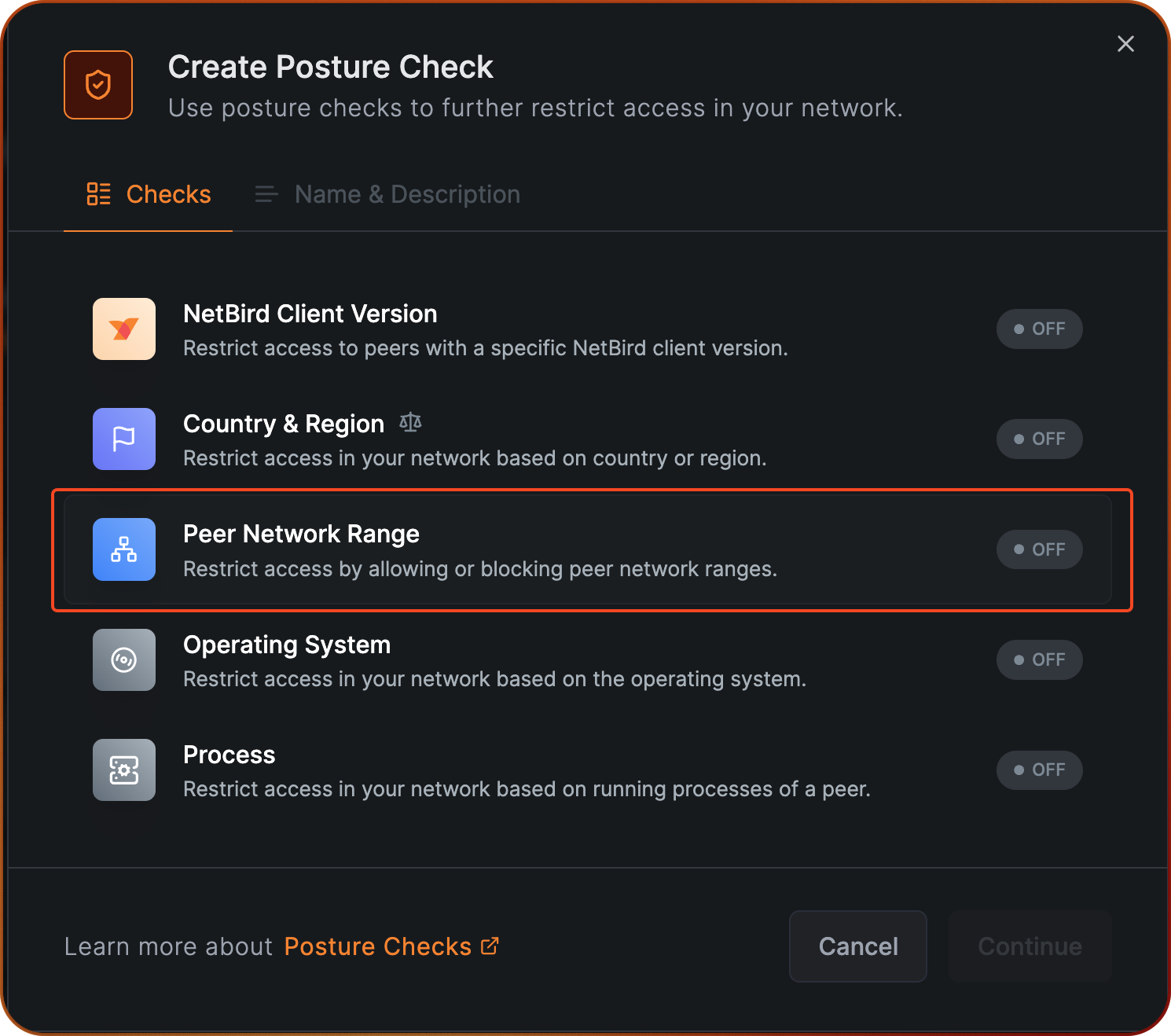
Navigate to Access Control > Posture Checks in the NetBird dashboard and click Add Posture Check. Select Peer Network Range.
Select the Block action, then click Add Network Range and enter the office subnet 192.168.1.0/24.
If you have several sites to exclude, add one network range per site to the same posture check.
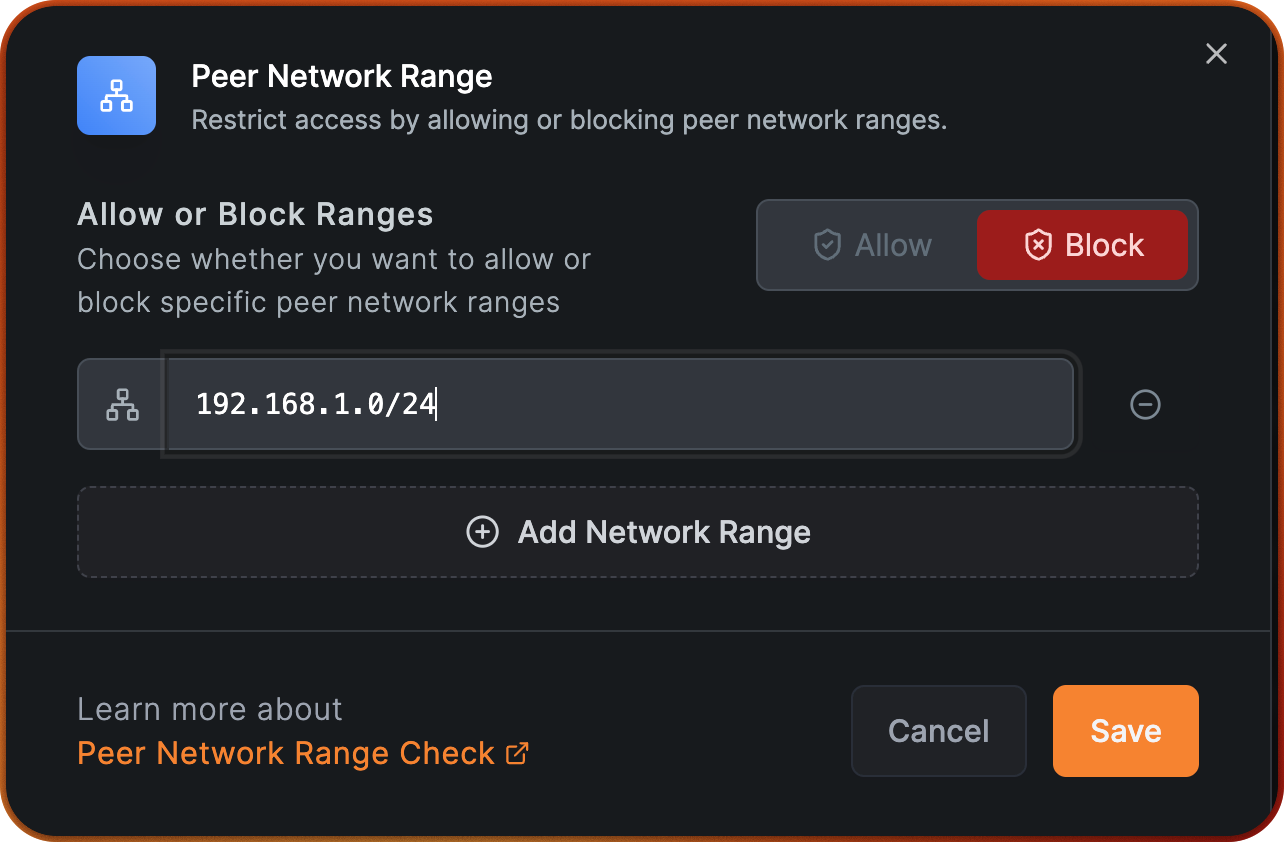
Click Save, then Continue, and name the check "Exclude office subnet".
Create the Network and its resource
Create a Network for the office and add router-01 as its routing peer, then add the office LAN as a resource. The full walkthrough is on the Networks page.
For this use case the resource is the office subnet 192.168.1.0/24, because the whole point is to route that range only when the user is remote. Everywhere else, prefer single-host /32 resources: a policy then grants access to one machine instead of a whole subnet.
Resources are not members of the built-in All group, so nothing behind the routing peer is reachable until a policy allows it. That policy is the next step, and it is where the posture check goes.
Create the access policy and attach the check
Navigate to Access Control > Policies and click Add Policy. Set the source to the group route-users and the destination to the office resource (or to a resource group that contains it), then choose the protocols and ports you want to allow.
Click Browse Checks, select Exclude office subnet, and click Add Posture Checks.
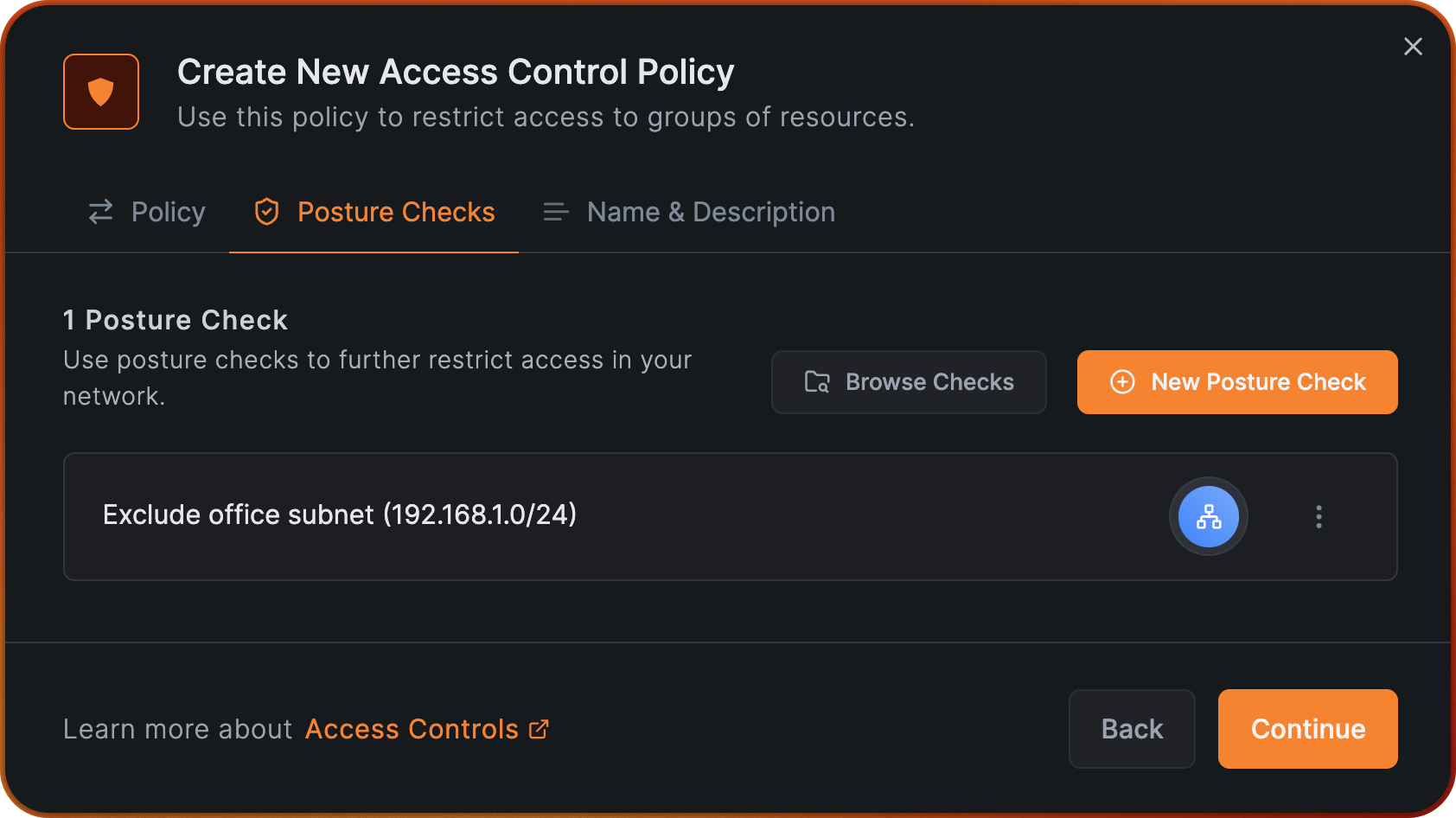
Name the policy "Office network access" and save it. Peers in route-users now receive the office route only while they are outside 192.168.1.0/24.
Verify it
The example below uses a macOS client named client-01 in the group route-users, so the NetBird interface appears as utun100 and the local link as en0. On Windows and Linux the NetBird interface is wt0 by default. The screenshots use the older netbird routes list alias of netbird networks list, which still works.
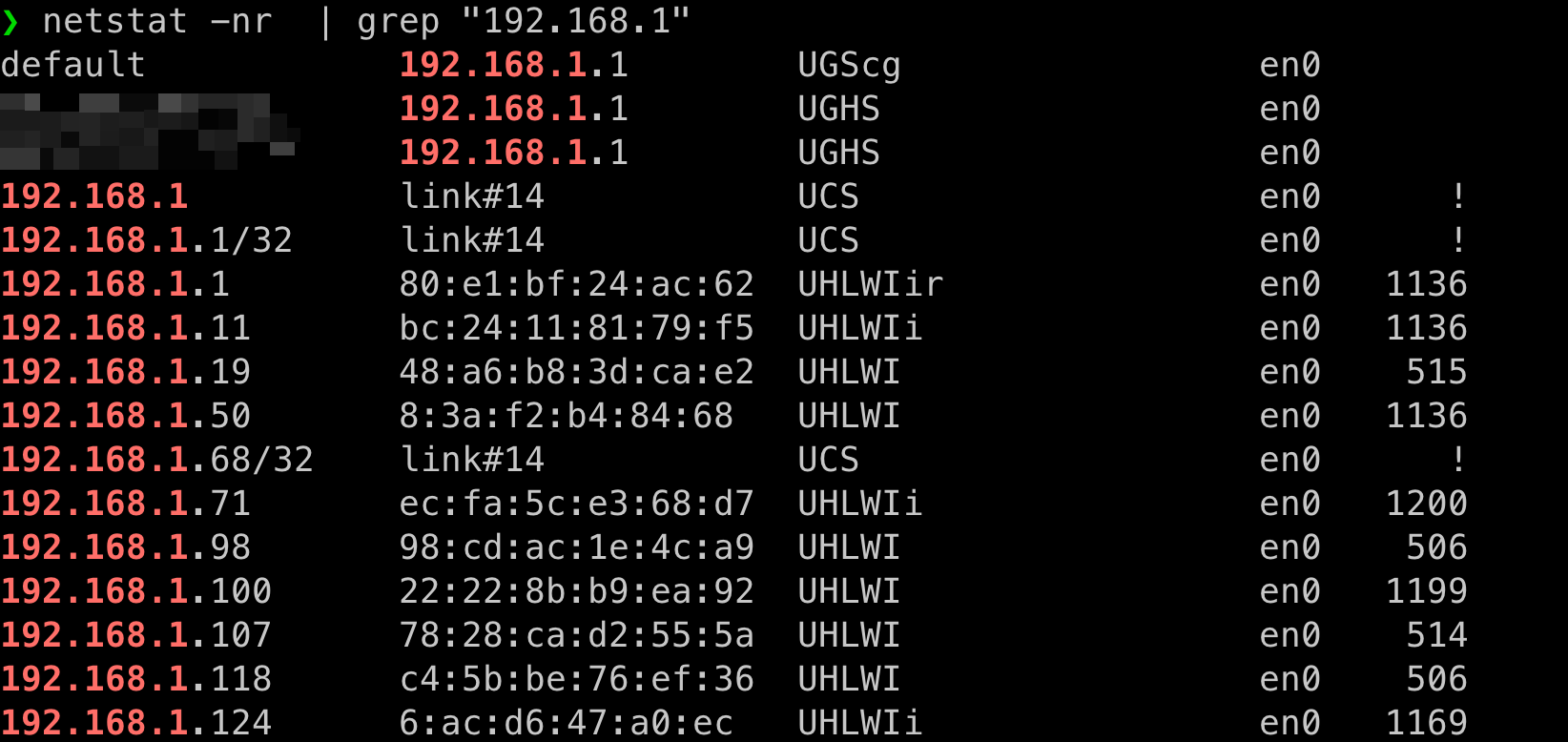
Inside the office. The device holds an address inside the office subnet.
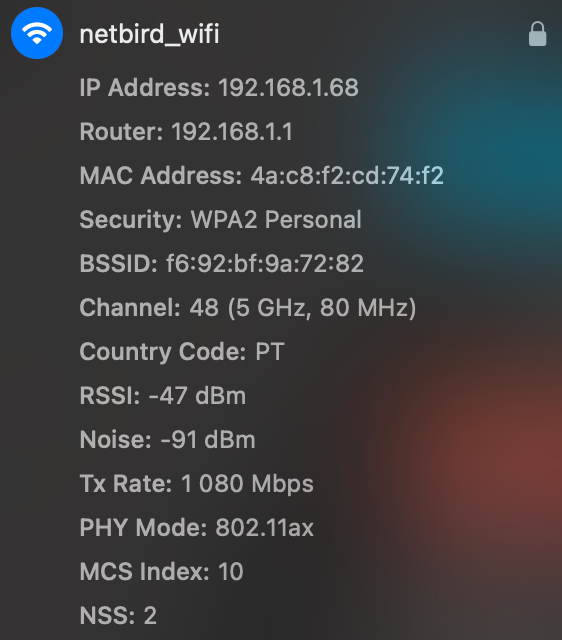
netbird networks list does not show the office network, and the system route table sends 192.168.1.0/24 over the local interface en0.

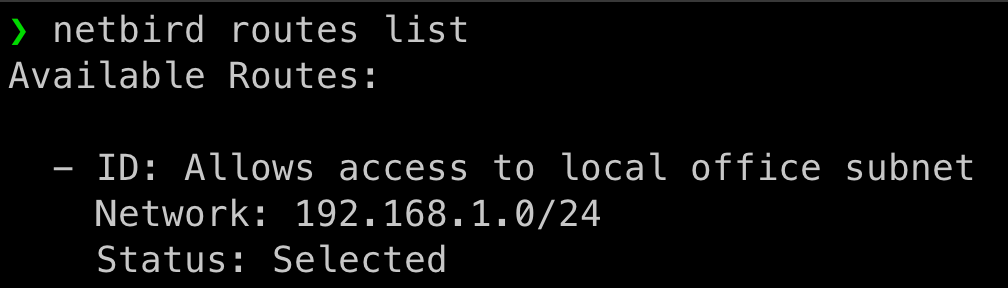
Outside the office. The office network is distributed again and shows as selected, and the same destination now goes over the NetBird interface utun100.

Limits worth knowing
Re-evaluation after a network change is automatic, but not immediate. When a device switches network, for example from cellular to office Wi-Fi, the client reports its new addresses and the management server rebuilds the network map before the route is added or withdrawn. Expect a short gap during which the previous route set is still in place.
An IP range is not an identity. The check can only compare addresses, so it cannot tell two networks apart that use the same range. An office on 192.168.1.0/24 and a home network on 192.168.1.0/24 look identical to it, and blocking one blocks the other. If your office range collides with the ranges your users have at home, match on the office public IP instead, as described below.
Platform coverage. Matching a device's local interface addresses depends on the client reporting them. See Peer Network Range Check on Android for the platform details.
Matching by office public IP
The example above relies on the office LAN subnet showing up on the peer's local network interface. In some deployments this isn't practical, for example when the office hands out an opaque DHCP range that overlaps with common home-network subnets, or when peers connect through a guest network that doesn't expose the production LAN on the device.
In these cases you can match the peer's public egress IP instead: the source IP the NetBird management server observes when the peer connects. The Peer Network Range posture check evaluates this IP automatically against any range in the list and matches when the IP is contained in the range, so you can use a single-host prefix for one address or a CIDR for a whole block.
IPv4 example
If your office's public IPv4 address is 203.0.113.10, create a Peer Network Range posture check with the Block action and add 203.0.113.10/32 to the list. Peers connecting from that egress IP will be blocked from the resource, while peers connecting from anywhere else will reach it.
If your office (or your ISP) hands out an entire public block, you can add the block directly, for example 198.51.100.0/24 or 203.0.113.0/24. Any peer whose connection IP falls in that range will match.
IPv6 example
If your office also (or only) has an IPv6 egress, add the address as a /128, for example 2001:db8::1/128, or a wider IPv6 prefix such as 2001:db8::/48. You can include IPv4 and IPv6 entries in the same posture check; a peer matches if its connection IP falls into any of them.
For this to work, the NetBird management server must see the peer's real source IP. When running self-hosted behind a reverse proxy or load balancer, ensure the proxy is configured to forward the client IP (PROXY protocol or X-Forwarded-For). The country and city shown on the peer in the dashboard are a quick sanity check: if they reflect your proxy's datacenter rather than the peer's actual location, the source IP isn't being forwarded correctly.
Mobile peers connecting through cellular networks normally have a different egress IP than your office, so they will not be matched. However, if a phone joins the office Wi-Fi, its egress IP becomes the office IP and the block will apply, which is usually the desired behavior.
Summary
- A routing peer in the office publishes
192.168.1.0/24as a resource in a Network. - One access policy grants
route-usersaccess to that resource. - A Peer Network Range posture check with the
Blockaction for192.168.1.0/24is attached to that policy. - On site, the policy does not apply, so the route is never installed and the device reaches the LAN over its local link. Off site, the route returns and traffic takes the NetBird interface.