Stream Network Activity to Amazon Data Firehose
Updated
Amazon Data Firehose is a fully managed service for delivering real-time streaming data to destinations such as Amazon Simple Storage Service (Amazon S3), Amazon Redshift, an other AWS services. You can use Amazon Data Firehose as a bridge between NetBird and other third-party providers that support Data Firehose to ingest, transform and analyze your network activity events.
This feature is available in the cloud version of NetBird and in self-hosted deployments with an enterprise license.
Prerequisites
Before you start creating and configuring an Amazon Data Firehose event streaming integration, ensure that you have the following:
- An AWS account with the permissions to create and manage Data Firehose delivery streams.
- Permissions to create and manage IAM users, roles and policies.
If you don't have the required permissions, ask your AWS administrator to grant them to you.
Create a Data Firehose Stream
- Navigate to the Data Firehose Dashboard
- Click
Create Firehose stream - As source select
Direct PUTand the desired destination - Give it a descriptive name like
netbird-activity-eventsand configure the stream to your needs
Create an IAM User
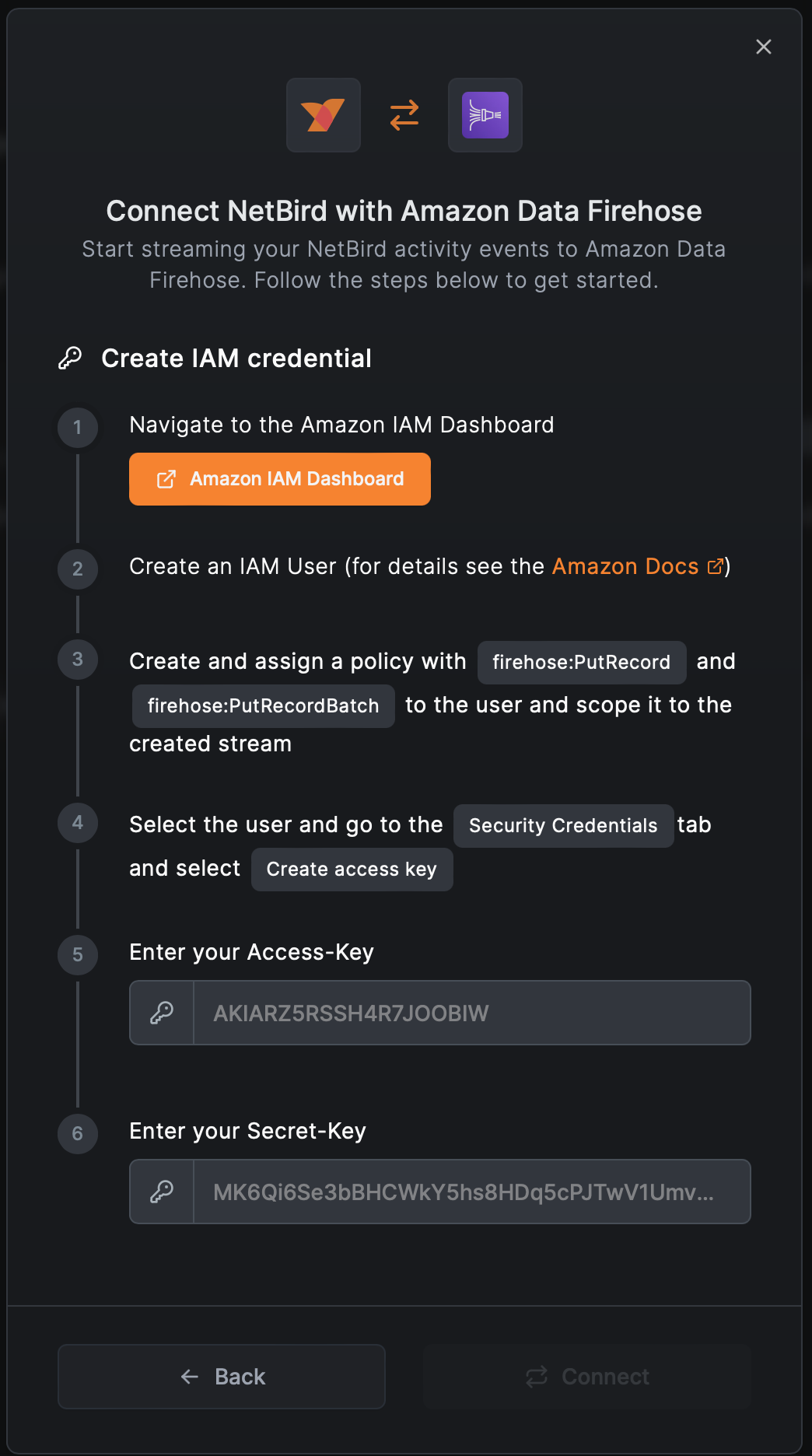
- Navigate to the IAM Dashboard
- Create an IAM User (for details see the Amazon Docs)
- Create a custom policy with the following permissions (replace the resource with the ARN of your delivery stream):
{
    "Version": "2012-10-17",
    "Statement": [
        {
            "Effect": "Allow",
            "Action": [
                "firehose:PutRecord",
                "firehose:PutRecordBatch"
            ],
            "Resource": "arn:aws:firehose:region:accountID:deliverystream/netbird-event-streaming"
        }
    ]
}
- Attach the policy to the IAM user
- Select the user and navigate to the
Security credentialstab - Click
Create access key - Select
Third-party serviceand clickNext - Give it a description
- Store
Access keyandSecret access keyin a secure place. You will need these when configuring an integration in NetBird.
Create an Integration in NetBird
- Navigate to the Integrations » Event Streaming tab in the NetBird dashboard
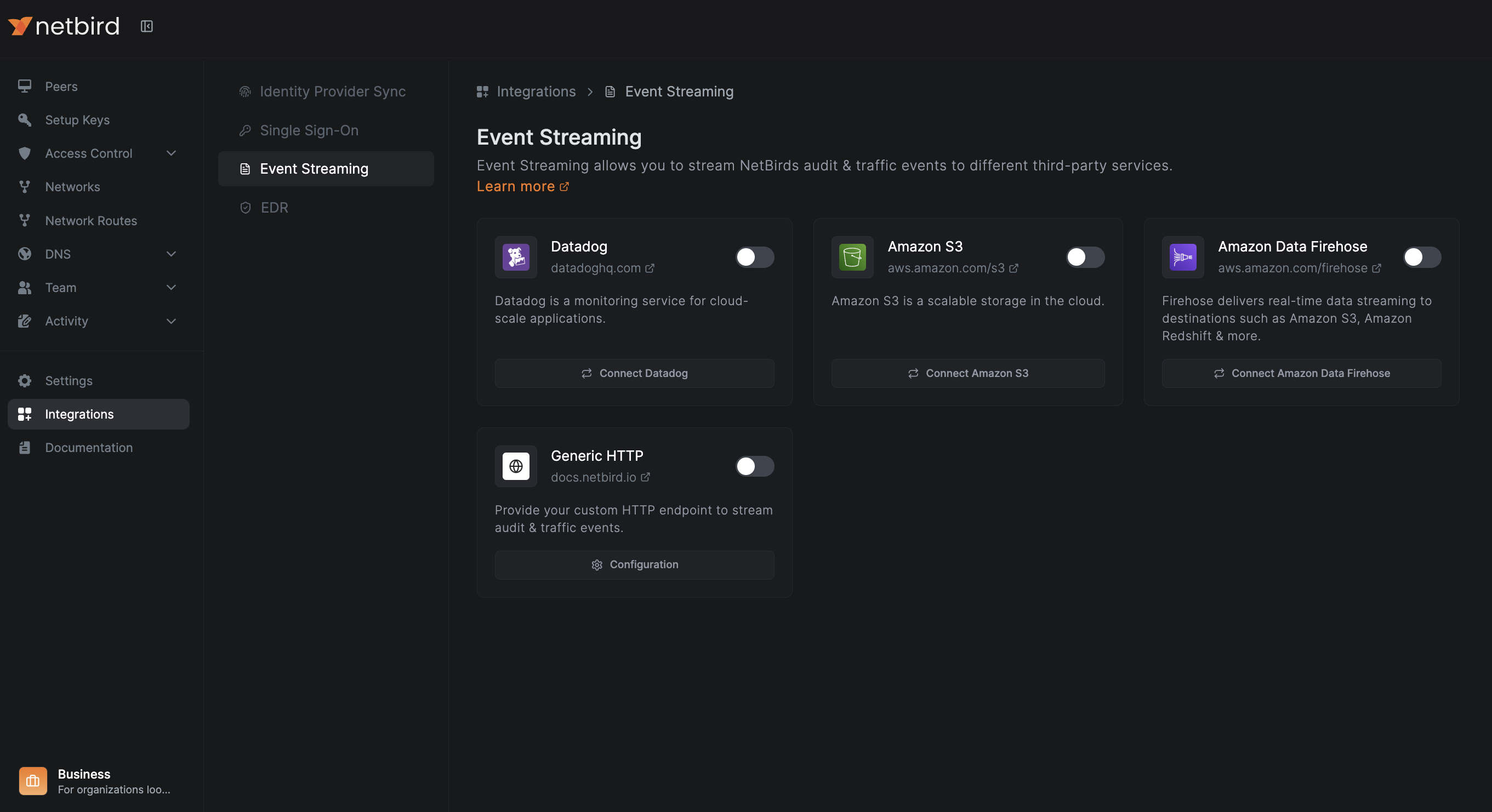
- Enable and configure the
Amazon Data Firehoseintegration - First select the region your Firehose stream is created in
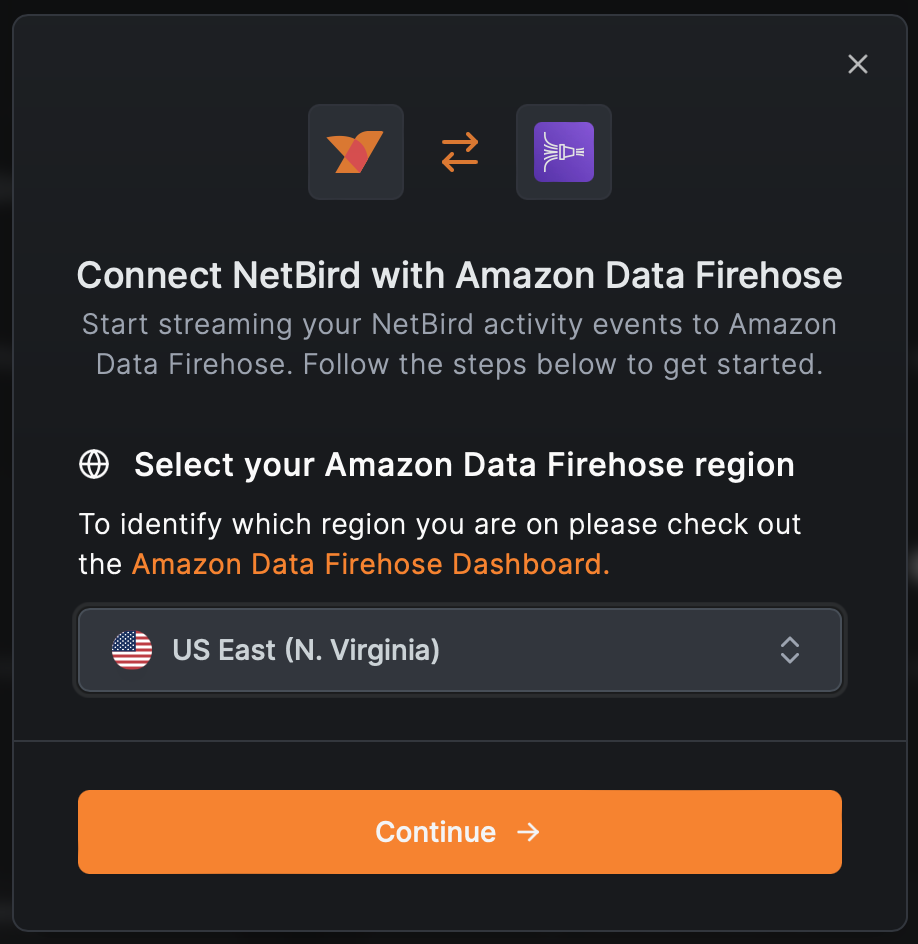
- Then enter the Firehose stream name you created in Step 1 and click
Next
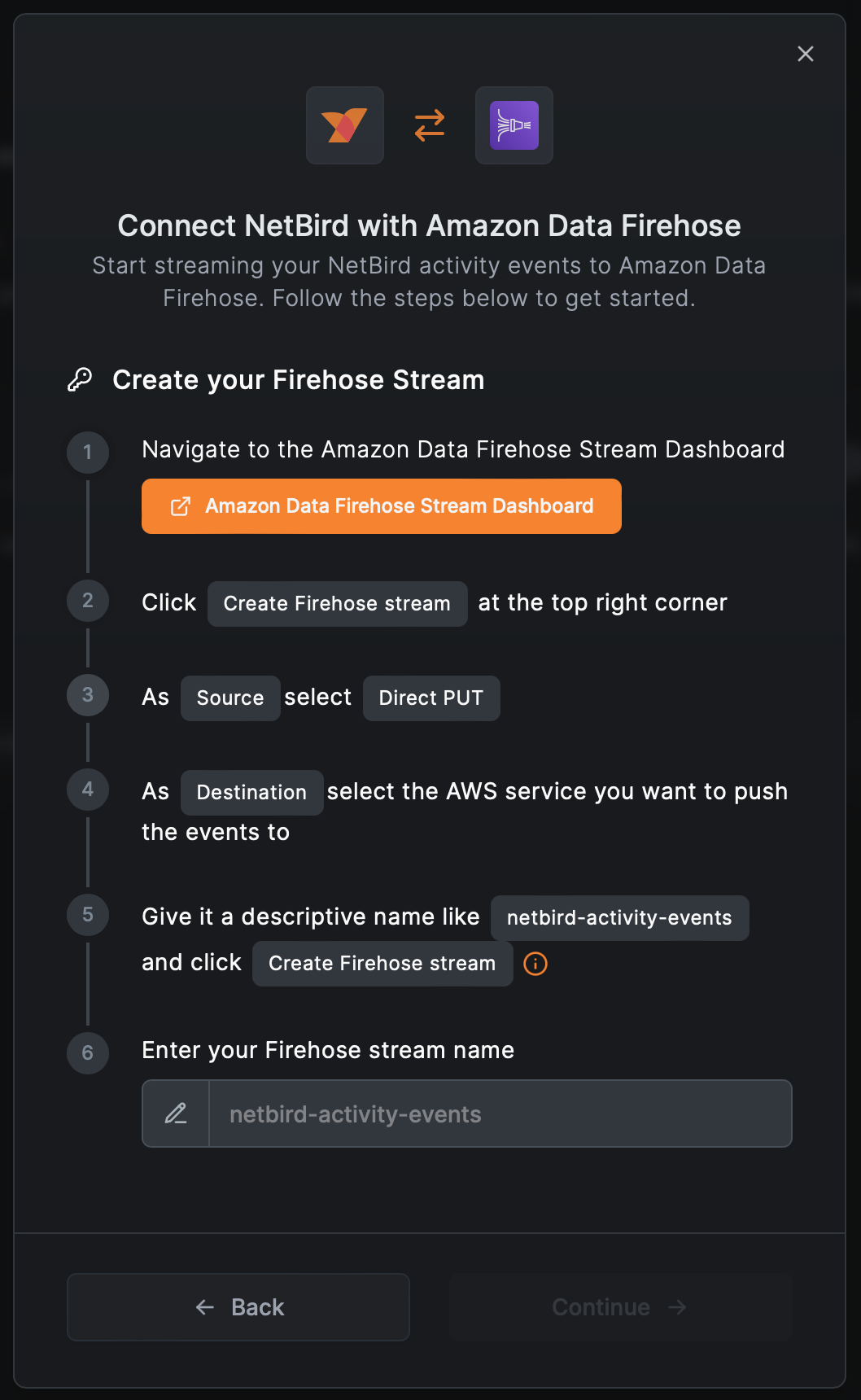
- Enter the
Access keyandSecret access keyyou created in Step 2 and clickConnect